
How to Add an Email Signature in Apple Mail (macOS)
Apple Mail's signature settings are hidden, fussy, and unforgiving — but perfectly usable once you know the sequence. Here's the complete walkthrough, plus the shortcuts Apple never built.
Step by step
Open Mail's settings
In the menu bar choose Mail → Settings… (or press ⌘ ,).
Go to the Signatures tab
It's the second-to-last tab in the settings window.
Pick the account
In the left column, select the email account this signature belongs to — or All Signatures to keep it unassigned for now.
Create the signature
Click the + button under the middle column and give the signature a recognizable name.
Or skip the manual setup
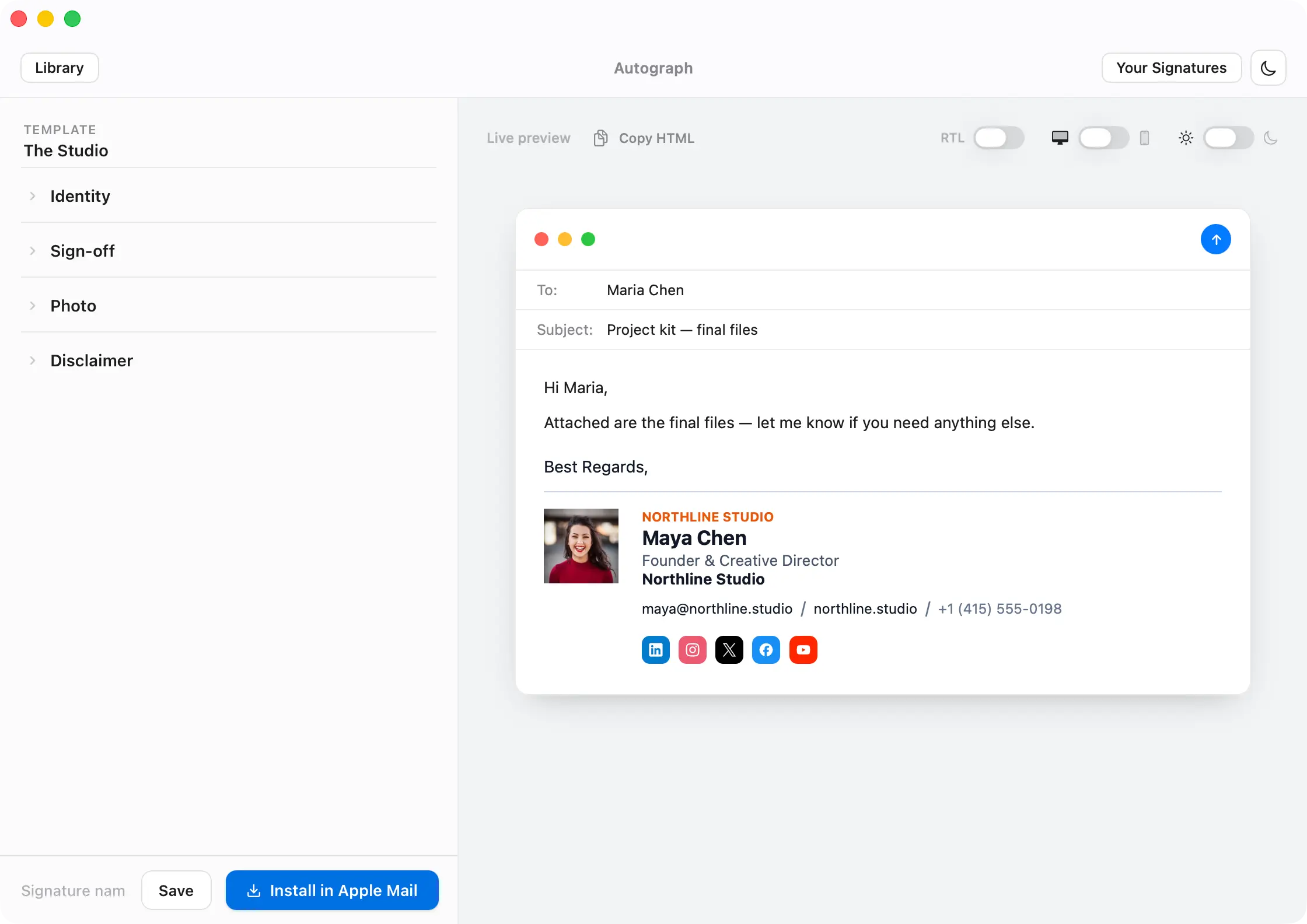
Autograph designs the signature on your Mac and installs it into Apple Mail in one click — images hosted at permanent URLs, assigned to the right account, and re-applied automatically when a macOS update or iCloud sync wipes it.
Download freeUnlock Pro — one-time, no subscriptionWrite it
Type your name, title, company, and contact details in the right-hand box. Uncheck “Always match my default message font” if you want your own fonts and colors to survive.
Assign it to an account
If you created it under All Signatures, drag it from the middle column onto an account in the left column — signatures only appear when assigned.
Set the default
With the account selected, use the Choose Signature dropdown at the bottom to pick which signature is applied automatically to new messages.
Test it
Compose a new message — the signature should appear. Use the Signature dropdown in the compose window to switch between signatures per email.
Or skip all eight steps
Autograph designs a professional signature — photo, logo, social icons, the works — and installs it into Apple Mail in one click. It even sets up your iPhone with a QR code.
Download Autograph free See the templatesCommon questions
Why doesn't my signature appear when I compose an email?
Two usual causes: the signature isn't assigned to the account you're sending from (drag it onto the account in Mail → Settings → Signatures), or the “Choose Signature” dropdown for that account is set to None.
Do Apple Mail signatures sync between my Macs?
Yes — if iCloud Drive is enabled for Mail (System Settings → your name → iCloud → iCloud Drive), signatures sync across your Macs. They do NOT sync to iPhone or iPad — see our iPhone guide for the working method.
Can I add a photo or logo?
You can drag an image in, but Apple Mail treats it as an attachment and many recipients see it broken or as a paperclip file. The reliable approach is an HTML signature with hosted images — which is exactly what Autograph builds and installs for you.
The Apple Mail Signature Fix Kit
A free checklist: why Apple Mail signatures vanish after macOS updates, the iCloud sync gotcha that wipes them, and how to make your images render in Gmail and Outlook. Straight to your inbox.