
How to Add an Email Signature in Gmail
Gmail's signature editor is friendlier than most — but the image handling, reply defaults, and the mobile-app catch still trip people up. The full setup:
Step by step
Open Gmail settings
In Gmail on the web, click the gear icon (top right) → See all settings.
Find the Signature section
Stay on the General tab and scroll down to Signature.
Create a new signature
Click + Create new, name it, and build it in the editor — formatting toolbar included.
Or skip the manual setup
Autograph designs the signature on your Mac and installs it into Apple Mail in one click — images hosted at permanent URLs, assigned to the right account, and re-applied automatically when a macOS update or iCloud sync wipes it.
Download freeUnlock Pro — one-time, no subscriptionAdd your image the right way
Use the Insert image toolbar button. “Web Address (URL)” with a hosted image is the most reliable for recipients; Google Drive images require the file to be shared publicly or they'll show broken.
Set signature defaults
Below the editor, choose which signature applies FOR NEW EMAILS and ON REPLY/FORWARD — this is the setting everyone misses.
Save
Scroll to the bottom and click Save Changes — Gmail discards everything if you navigate away without saving.
Set up the mobile app separately
The Gmail app doesn't use your web signature. In the app: Menu → Settings → your account → Signature — and note it's plain text only.
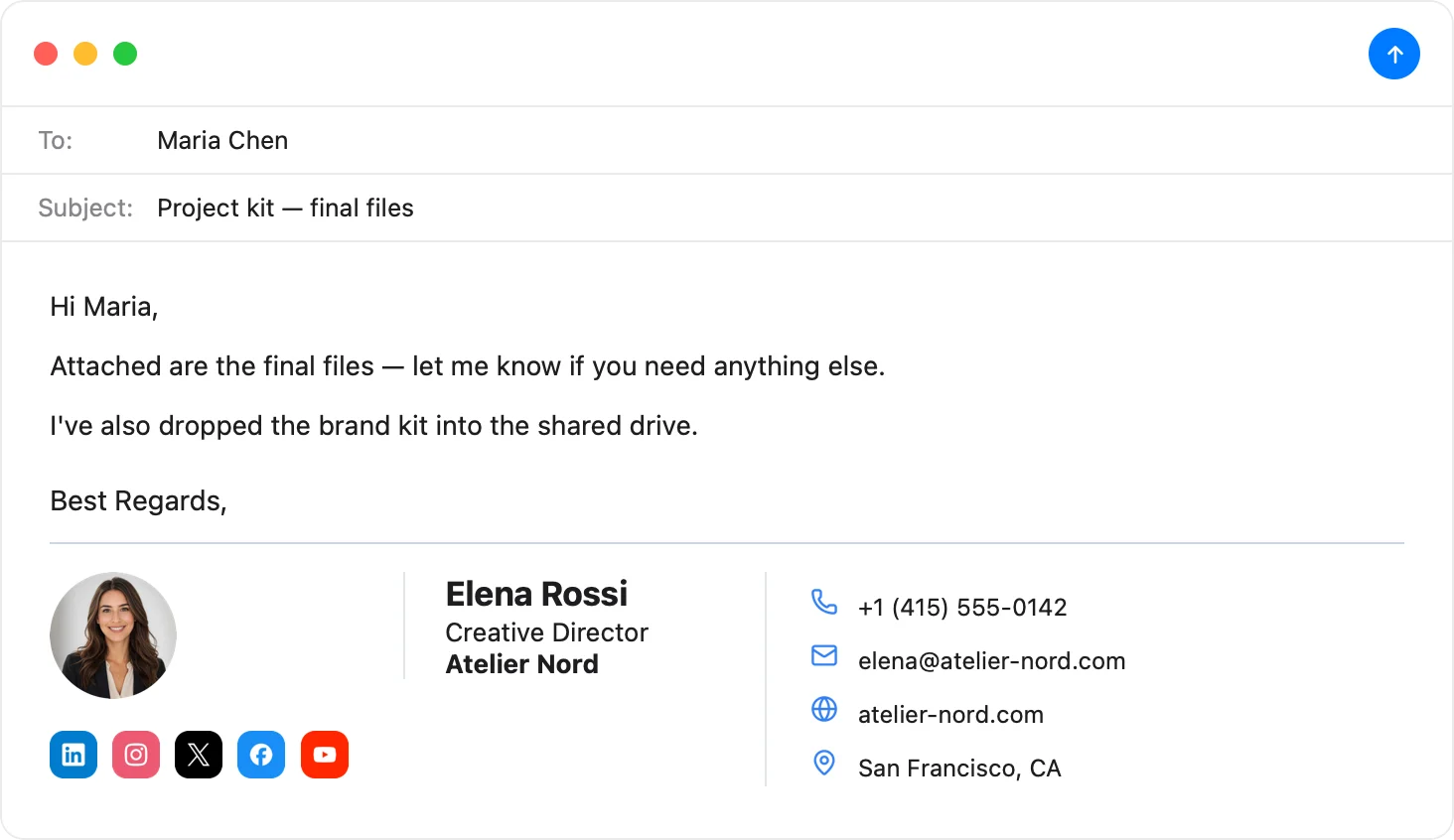
On a Mac with Apple Mail too?
Design once in Autograph: one click installs it in Apple Mail, Copy HTML pastes it into Gmail, and a QR code sets up your iPhone.
Download Autograph free See the templatesCommon questions
Why don't recipients see my Gmail signature image?
Usually a Google Drive image that isn't publicly shared, or a pasted image that didn't upload. Use a hosted https image URL, or re-insert via the Insert image button.
Why doesn't my signature appear on replies?
Check the ON REPLY/FORWARD default under the signature editor. Also note Gmail hides the signature behind the “···” trim indicator in threads — recipients still get it.
Can I use the same designed signature in Apple Mail?
Yes — on a Mac, Autograph installs a designed signature into Apple Mail in one click, and its Copy HTML button gives you the same signature to paste into Gmail's editor.
The Apple Mail Signature Fix Kit
A free checklist: why Apple Mail signatures vanish after macOS updates, the iCloud sync gotcha that wipes them, and how to make your images render in Gmail and Outlook. Straight to your inbox.