
The Sales Rep's Email Signature: Built to Get Replies and Book Meetings
If you send outreach and follow-ups all day, your signature is working overtime — it's the credibility layer on every cold email and the shortcut to your calendar on every warm one. Here's how to build one that earns replies and books meetings.
Step by step
Put a face to the name
Cold outreach lands better when there's a real person behind it. A professional headshot lifts trust and reply rates; Autograph bakes it into a crisp circle that survives Outlook and Gmail.
State who you are and where you're from
Name, title, and company — clearly. On cold email, the prospect is deciding in two seconds whether you're legitimate; a clean, branded signature is part of that judgment.
Make the booking link the centerpiece
The whole point of sales email is the meeting. A “Book a time” button to your calendar removes the back-and-forth — one tap from interested to booked. This is the single highest-value element.
Or skip the manual setup
Autograph designs the signature on your Mac and installs it into Apple Mail in one click — images hosted at permanent URLs, assigned to the right account, and re-applied automatically when a macOS update or iCloud sync wipes it.
Download freeUnlock Pro — one-time, no subscriptionDesign mobile-first
A large share of your emails are read on phones. Tap-to-call (tel:), a thumb-friendly booking button, and a layout that doesn't collapse on a narrow screen (mobile guide).
Add a credibility marker, not clutter
One line that de-risks you: a recognizable client logo mention, a stat, or an award. Keep it to one — outreach signatures should be lean and fast to scan.
Install it into Apple Mail in one click
Pick a call-to-action template, drop in your headshot, company, and booking link, then Install in Apple Mail — written in and assigned to your account, no copy-pasting.
Mirror it on your iPhone
You follow up from your phone between meetings. Autograph's QR flow installs the same signature on iPhone with working images (iPhone setup).
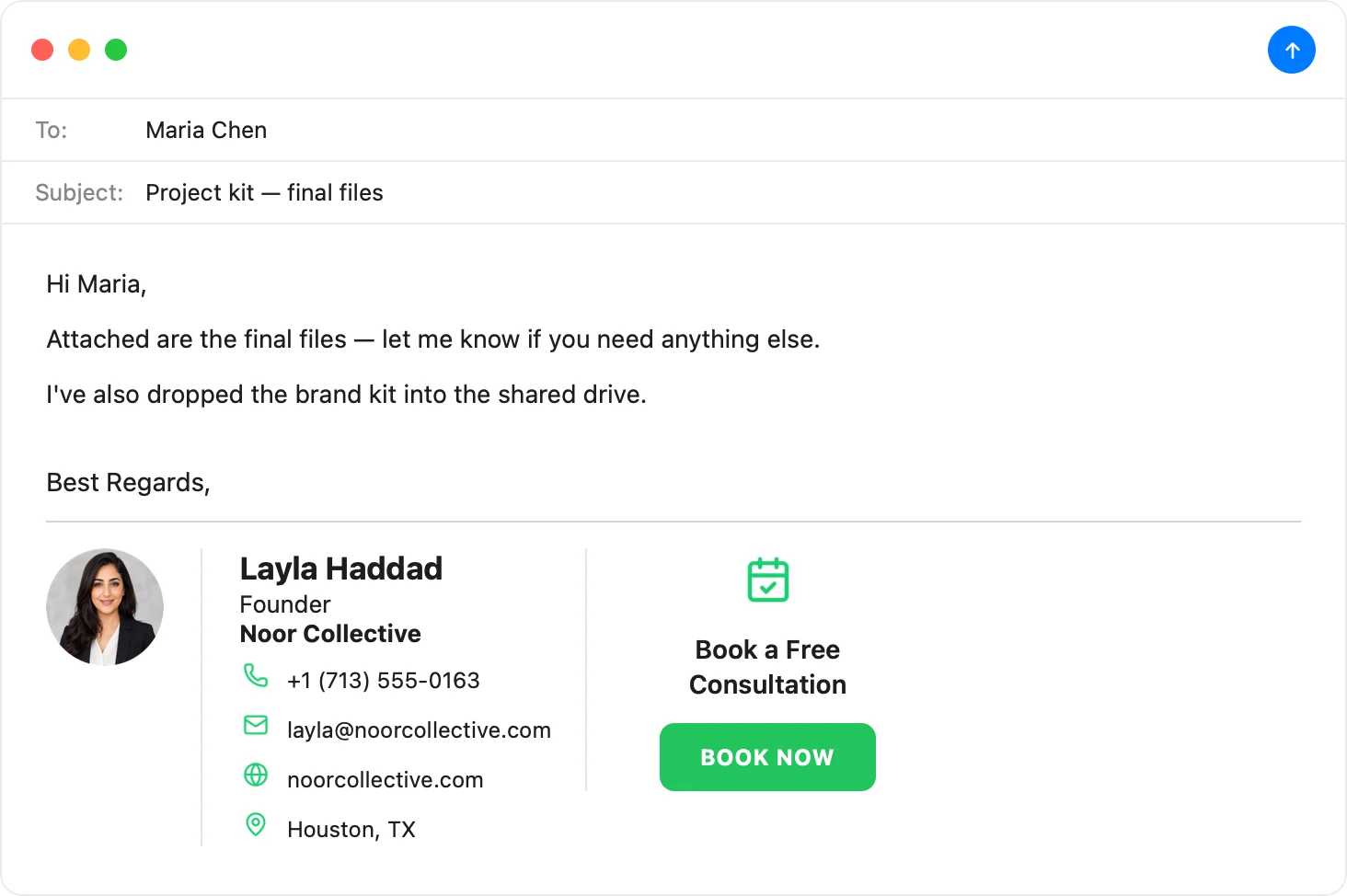
Turn every email into a booked meeting
Headshot, company, and a one-tap booking button — pick the Call to Action template, make it yours, and install it into Apple Mail and your iPhone in one click.
Download Autograph free See the templatesCommon questions
What's the most important part of a sales email signature?
The booking link. Sales runs on booked meetings, and a one-tap “Book a time” button converts interest into a calendar event before the prospect cools off. Make it the visual centerpiece.
Should cold outreach emails even have a full signature?
Yes — a clean, professional signature raises trust and reply rates on cold email; the alternative reads as spammy. Keep it lean: face, name/title/company, one credibility line, and the booking CTA.
How do I keep my signature from breaking on mobile?
Use a layout designed to reflow on narrow screens and tappable links. Autograph's templates are built mobile-first, and you can preview the mobile rendering before you install.
The Apple Mail Signature Fix Kit
A free checklist: why Apple Mail signatures vanish after macOS updates, the iCloud sync gotcha that wipes them, and how to make your images render in Gmail and Outlook. Straight to your inbox.